Getting the most out of your processor is not simply a matter of buying the most expensive hardware on the market. Whether you are running a Windows desktop, a laptop, or a Mac, a thoughtful approach to system settings, hardware maintenance, and security can unlock a noticeably snappier experience across every task, from everyday office work and browsing to gaming and audio production.
In short
- Switching to the High Performance power plan and disabling core parking prevents CPU throttling and ensures maximum processing power.
- Managing startup applications and background tasks through Task Manager or Activity Monitor significantly reduces boot times and frees up CPU resources.
- Upgrading to an SSD and increasing RAM capacity provide the most dramatic performance gains when hardware becomes a bottleneck.
- Maintaining efficient cooling is critical to preventing thermal throttling, where the CPU automatically slows down to manage high temperatures.
- Safe overclocking requires incremental adjustments and robust cooling, though it should be approached with caution due to potential system instability.
- Disciplined memory management, such as closing unused browser tabs and freezing heavy audio tracks, is essential for maintaining system responsiveness.
- Regular security maintenance, including malware protection and timely software updates, prevents background threats from consuming CPU cycles and slowing down the system.
Fine-tuning system settings and power management
Adjusting windows power plans for maximum cpu output
One of the most straightforward yet underutilised methods for improving processor performance is revisiting your power management settings. By default, many systems ship with a balanced power plan that deliberately throttles the CPU to conserve energy. Switching to the High Performance power plan prevents this throttling and eliminates the micro-stutters that can disrupt audio production, gaming sessions, and even routine multitasking. On Windows, it is also worth disabling the option that automatically turns off hard disks after a period of inactivity, as this can introduce frustrating delays when the system needs to access data rapidly. For users working with audio interfaces or demanding real-time tasks, setting processor scheduling to favour background services rather than foreground programmes further sharpens responsiveness. Similarly, disabling core parking (a feature that shuts down idle CPU cores) keeps all processing resources available at all times, which is particularly beneficial during peak workloads.
Optimising background tasks and task manager settings
A well-managed task list is the backbone of a fast system. Tools such as Task Manager on Windows and Activity Monitor on macOS allow you to identify which applications are quietly consuming CPU and RAM in the background. Many programmes are set to launch automatically at startup, silently draining resources before you have even opened a single file. Managing these startup programmes through Task Manager or macOS System Preferences can meaningfully reduce boot times and free up processing headroom throughout your session. Uninstalling applications you rarely use is equally important: not only does this reclaim disk space, but it also eliminates processes that may be running in the background without your knowledge. For audio professionals in particular, disabling Wi-Fi and Bluetooth during recording sessions removes a common source of interference and random audio clicks, keeping the system focused entirely on the task at hand.
Hardware adjustments and overclocking safety
Upgrading thermal solutions, motherboard and power supply
Software optimisation can only take you so far. When the hardware itself becomes a bottleneck, targeted upgrades deliver the most dramatic improvements. Switching from a traditional hard disk drive to an SSD is widely regarded as one of the single most impactful upgrades available, dramatically improving data access speeds for your operating system, applications, and project files alike. Upgrading RAM is another highly effective intervention, a minimum of 8GB is recommended for general use, though demanding workflows such as video editing, large DAW sessions, or modern gaming will benefit from considerably more. On the hardware side, ensuring your motherboard supports the speed profiles of your memory sticks and that your power supply delivers stable, clean power is essential for avoiding performance instability, particularly when running multiple high-demand components simultaneously. Adequate cooling (whether through upgraded air coolers or liquid solutions) also plays a critical role, since thermal throttling causes the CPU to reduce its clock speed automatically when temperatures climb too high.
Safe Overclocking Techniques for PC and Laptop Processors
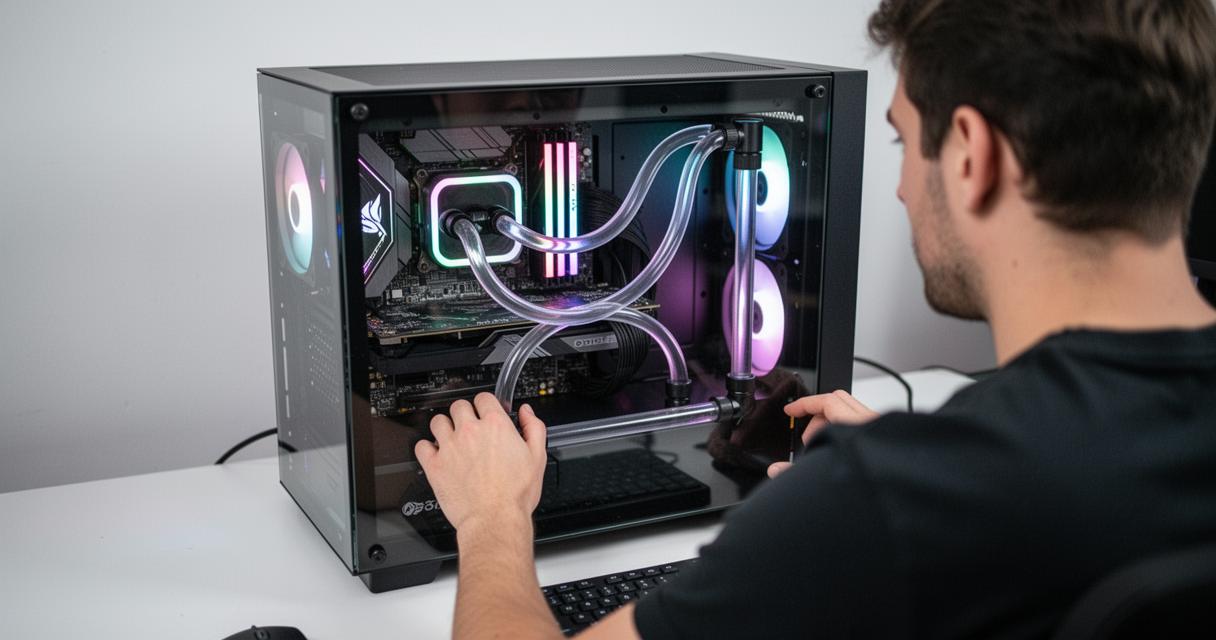
Overclocking pushes your processor beyond its factory-specified clock speed to extract additional performance, but it demands a careful and methodical approach. The first step is always to ensure your cooling solution is up to the task, as increased clock speeds generate substantially more heat. Incremental adjustments (raising the multiplier or base clock in small steps and stress-testing between each change) allow you to identify the stable ceiling for your specific chip. On laptops, overclocking carries greater risk due to the confined thermal environment, and many modern portable systems lock these settings entirely; in such cases, focusing on BIOS-level performance profiles and power management optimisation is a safer and more effective route. It is also worth verifying that your power supply and motherboard are rated to handle the increased power draw that accompanies an overclock, as instability or component damage can result from an underpowered setup.
Strengthening system security and memory management
Clearing RAM and Managing Browser Resources for Games
Effective memory management is often overlooked in the pursuit of raw speed, yet it has a profound impact on day-to-day responsiveness. Modern web browsers are notorious consumers of RAM, particularly when multiple tabs are left open alongside resource-intensive web applications. Before launching a game or a demanding audio session, closing unnecessary browser tabs and background applications frees up substantial memory for the tasks that matter. On Windows, the Disk Cleanup utility and, on macOS, the Optimise Storage feature help reclaim disk space occupied by temporary files and caches, keeping the system lean. For audio producers managing complex sessions, freezing tracks that use heavy plugins converts their audio to a static file, significantly reducing the real-time processing burden on the CPU and preventing overload during mixdown. Regular monthly maintenance (encompassing software updates, driver checks, and disk cleaning) keeps the system running at its best over the long term.
Preventing Malware and VPN Overhead to Accelerate Tasks
Security is inseparable from computer performance optimisation. Malware, viruses, and ransomware are not merely privacy threats, they actively consume CPU cycles, slow down processes, and can destabilise an otherwise well-tuned system. Running reputable antivirus software and conducting regular scans is an essential part of any maintenance routine. That said, real-time scanning can itself introduce latency during intensive sessions; temporarily disabling it while working offline on audio projects or other demanding tasks is a pragmatic compromise, provided the system is not connected to the internet at the time. VPN applications, whilst valuable for privacy and security, add a layer of encryption overhead that can noticeably slow network-dependent tasks and increase CPU load, so their use is best timed thoughtfully. Keeping your operating system and all software updated is equally vital, as updates frequently include performance improvements and security patches that address known vulnerabilities. By combining robust security practices with disciplined resource management, you create a system environment where the processor can operate at its full potential across every workload.